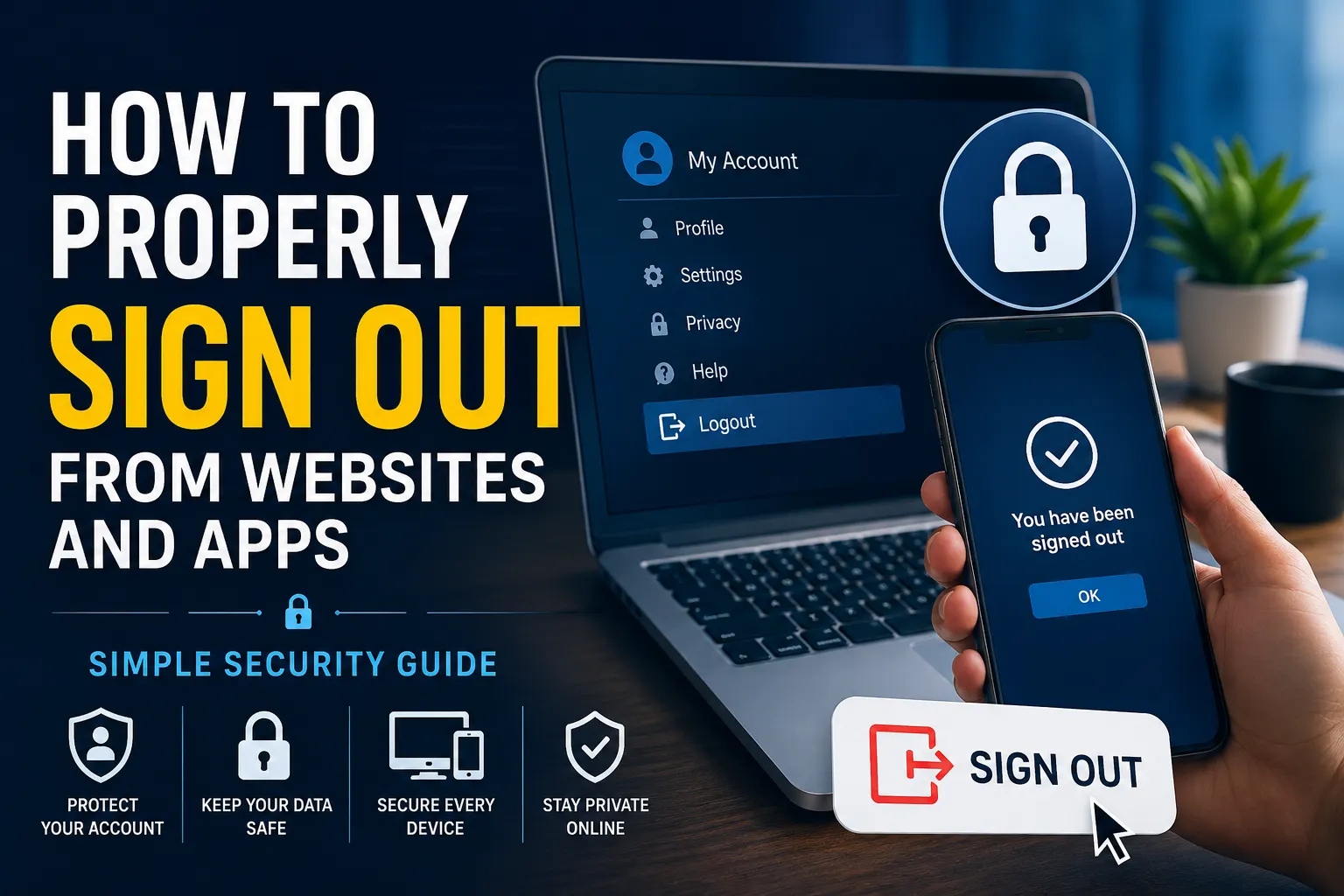
In today’s connected world, we stay logged into dozens of websites and mobile apps every day—social media, email, banking, shopping, and work tools. While signing in is something we do automatically, many users forget to properly sign out, which can create serious privacy and security risks.
Logging out is not just a basic option—it is an important habit that protects your personal information from misuse.
Why Signing Out Is So Important
Many people think closing a tab or exiting an app is enough, but that is not always true. In many cases, your session remains active in the background.
Properly signing out helps you:
- Prevent unauthorized access to your accounts
- Protect sensitive personal data
- Keep your accounts safe on shared devices
- Reduce risk of hacking or session theft
- Maintain privacy on public networks
For example, if you forget to sign out of your email on a public computer, someone else could access your messages or reset your passwords.
How to Sign Out from a Website
Most websites follow a similar structure, so the process is usually easy to find.
Step 1: Open Your Account Menu
Look for your profile icon, name, or avatar—usually at the top right or top left corner.
Step 2: Access Settings or Account Options
Click on the profile icon to open a menu with account-related options.
Step 3: Click on Sign Out
Select one of the options such as:
- Sign Out
- Log Out
- Exit
- Disconnect Account
After clicking, you will usually be redirected to the login page.
How to Sign Out from Mobile Apps
Mobile apps often keep users signed in for convenience, but you can still log out easily.
Step-by-Step Process:
- Open the app
- Go to profile or settings
- Find account/security section
- Tap on “Sign Out” or “Logout”
- Confirm your action if asked
Once done, the app will return you to the login screen.
How to Sign Out from All Devices at Once
Many modern platforms allow you to end all active sessions remotely. This is very useful for security control.
When You Should Use It:
- If your phone or laptop is lost
- If you notice suspicious login activity
- If you forgot to sign out on a shared device
- After changing your password
How It Works:
- Go to account settings
- Open security or device management section
- View all active sessions
- Select “Sign out from all devices”
This instantly logs you out everywhere.
Common Issues While Signing Out
Sometimes users face problems when trying to log out. Here are common issues and fixes:
| Issue | Cause | Solution |
|---|---|---|
| Sign out option not visible | Hidden in menu | Check profile or settings carefully |
| Automatically logged in again | Saved browser data | Clear cookies and saved passwords |
| App not responding | Temporary glitch | Restart or update app |
| Session still active | Background login session | Clear cache or reinstall app |
Safe Habits for Better Account Security
Signing out is important, but it should be combined with other safety habits.
- Use strong and unique passwords
- Turn on two-factor authentication (2FA)
- Avoid logging into accounts on public Wi-Fi
- Always sign out on shared devices
- Regularly clear browser history and cookies
These habits significantly reduce the risk of account compromise.
Why Businesses Should Enforce Logout Rules
For companies and teams, proper logout practices are essential for data protection.
Benefits:
- Protects company information
- Prevents unauthorized access
- Improves compliance with security policies
- Reduces internal security risks
Many organizations also use automatic session timeouts to improve safety.
Final Thoughts
Signing out of websites and apps may seem like a small step, but it plays a major role in protecting your digital identity. Whether you are using a phone, laptop, or shared computer, always make sure your session is properly closed.
When combined with strong passwords and secure browsing habits, regular sign-outs can greatly improve your online safety and privacy.