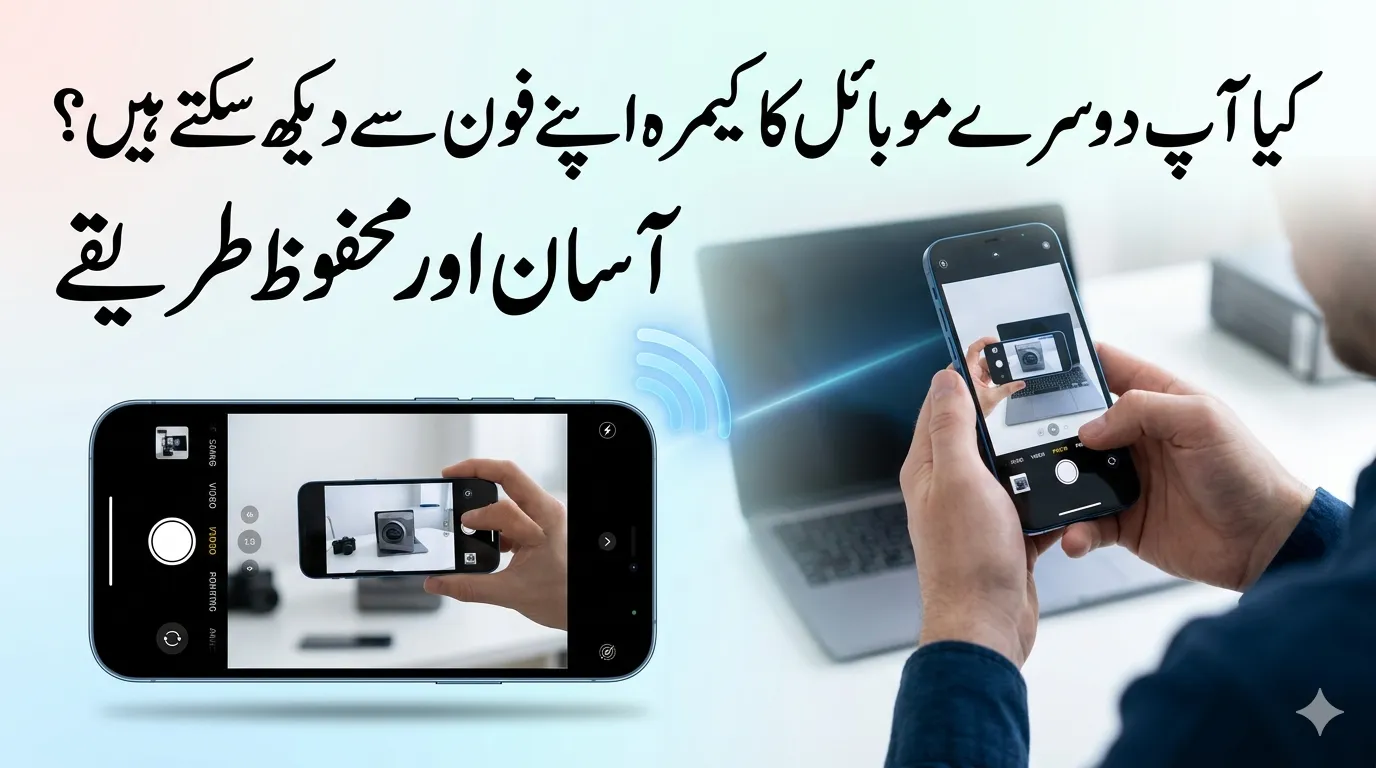
Sometimes you may need to see what another person is seeing through their phone camera. This can help when you are guiding someone to fix a device, checking something at home, or working together on a task from a distance.
Today, modern smartphone apps make it possible to view another phone’s camera remotely. The process is usually simple, but it must always be done with the other person’s permission and using secure apps.
For more official Update Please visit Apkcheers Official Website
Why People Use Another Phone’s Camera Remotely
Remote camera viewing can be helpful in many everyday situations. Some common examples include:
-
Remote troubleshooting – helping a friend or family member repair something.
-
Technical support – IT teams guiding users through device problems.
-
Remote collaboration – sharing real-time visuals during projects.
-
Home monitoring – checking on a room, pet, or environment.
-
Teaching or learning – showing how to perform tasks step by step.
In all situations, the most important rule is clear consent from the other person.
Method 1: Using Video Calling Apps
The easiest way to see through another phone’s camera is by using a normal video call.
Most people already have video calling apps installed, which makes this method quick and convenient.
Popular video calling apps
-
WhatsApp
-
Zoom
-
Google Meet
-
FaceTime
-
Skype
Steps to follow
-
Ask the other person to start a video call.
-
Request them to switch to the rear camera if you need a clearer view.
-
Ask them to point the phone at the object or area you want to see.
-
Guide them while watching the live video.
Advantages
-
Very easy to use
-
No special setup required
-
Uses trusted apps
Limitation
-
The other person must hold and move the phone during the call.
For quick help or guidance, this is usually the fastest solution.
Method 2: Using Remote Access Apps
Remote access apps allow one device to connect to another for technical assistance. Some of these apps also allow viewing the screen or accessing certain device features.
Common remote access apps
-
TeamViewer
-
AirDroid Personal
-
AnyDesk
-
Vysor
These tools are widely used by technical support teams and professionals.
Example using TeamViewer
-
Install TeamViewer on your phone.
-
Ask the other person to install TeamViewer QuickSupport.
-
They share their device ID with you.
-
Enter the ID to connect to their phone.
-
You can view the screen and guide them.
Depending on device permissions, the camera may be visible through the shared screen.
Advantages
-
Helpful for technical troubleshooting
-
Allows deeper device assistance
Limitations
-
Requires installation on both phones
-
Some features depend on phone permissions.
Method 3: Using Security Camera Apps
Another option is using apps designed to turn a phone into a temporary security camera.
With these apps, one phone acts as the camera device and the other phone becomes the viewer.
Popular security camera apps
-
Alfred Camera
-
Manything
-
Presence Video Security Camera
How to set it up
-
Install the same app on both phones.
-
Sign in using the same account.
-
Set one phone as the camera device.
-
Use your phone as the viewer.
You will then be able to watch the camera feed remotely.
Advantages
-
Real-time monitoring
-
Motion detection alerts
-
Cloud video storage in some apps
Limitations
-
Requires internet connection
-
Some advanced features require a paid plan.
This method is useful when you want to monitor a location for longer periods.
Method 4: Using Screen Sharing
Screen sharing allows someone to share their phone screen during an online meeting. When they open the camera app, you can see the camera view through the shared screen.
Apps that support screen sharing
-
Zoom
-
Microsoft Teams
-
Google Meet
Steps
-
Start a meeting in the app.
-
Ask the other person to tap Share Screen.
-
They open the phone’s camera app.
-
You will see the camera view on your phone.
This option works well when demonstrating something visually.
Important Privacy and Safety Tips
When accessing another person’s phone camera, privacy and security should always come first.
Always ask for permission
Accessing someone’s camera without consent may be illegal in many countries and violates personal privacy.
Use trusted apps
Choose well-known applications with good reputations and security protections.
Protect accounts
Enable strong passwords and two-factor authentication whenever possible.
Disconnect after finishing
Once the task is complete, end the connection to protect privacy.
Following these practices ensures the process stays safe and ethical.
Tips for Better Camera Quality
To improve the viewing experience when using another phone’s camera:
-
Ask the person to use the rear camera for better image quality.
-
Ensure the area has good lighting.
-
Place the phone on a stable surface or tripod.
-
Use a strong internet connection on both devices.
Small adjustments like these can significantly improve video clarity.
Final Thoughts
Viewing another person’s phone camera from your phone is possible using several simple methods. Video calls are the easiest option for quick help, while remote access or security camera apps offer more advanced features.
The most important factors are permission, security, and responsible use. When done correctly, remote camera access can make it much easier to provide support, collaborate remotely, or monitor environments when needed.
As smartphone technology continues to improve, these tools are becoming more reliable and accessible for everyday use.